 PresentSync
How to set up PresentSync on Windows
Install the Windows desktop app, approve sign-in with your phone and open a meeting.
- Computer
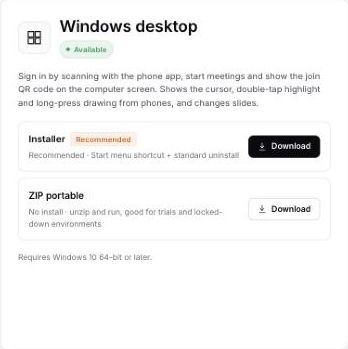
Download the Windows app
On the download page choose the Windows installer. Requires Windows 10 (64-bit) or later.
- Computer
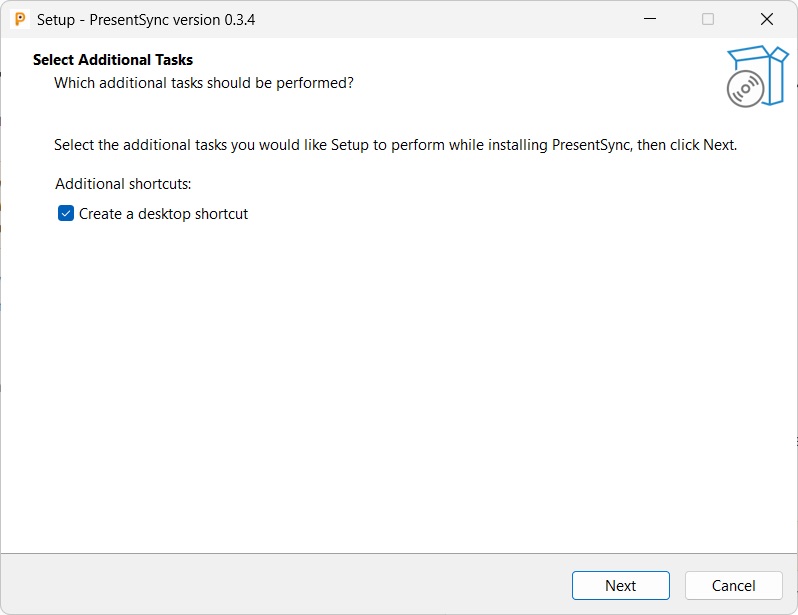
Run the installer and click Next
Keep “Create a desktop shortcut” ticked and click Next until it finishes.
- Computer
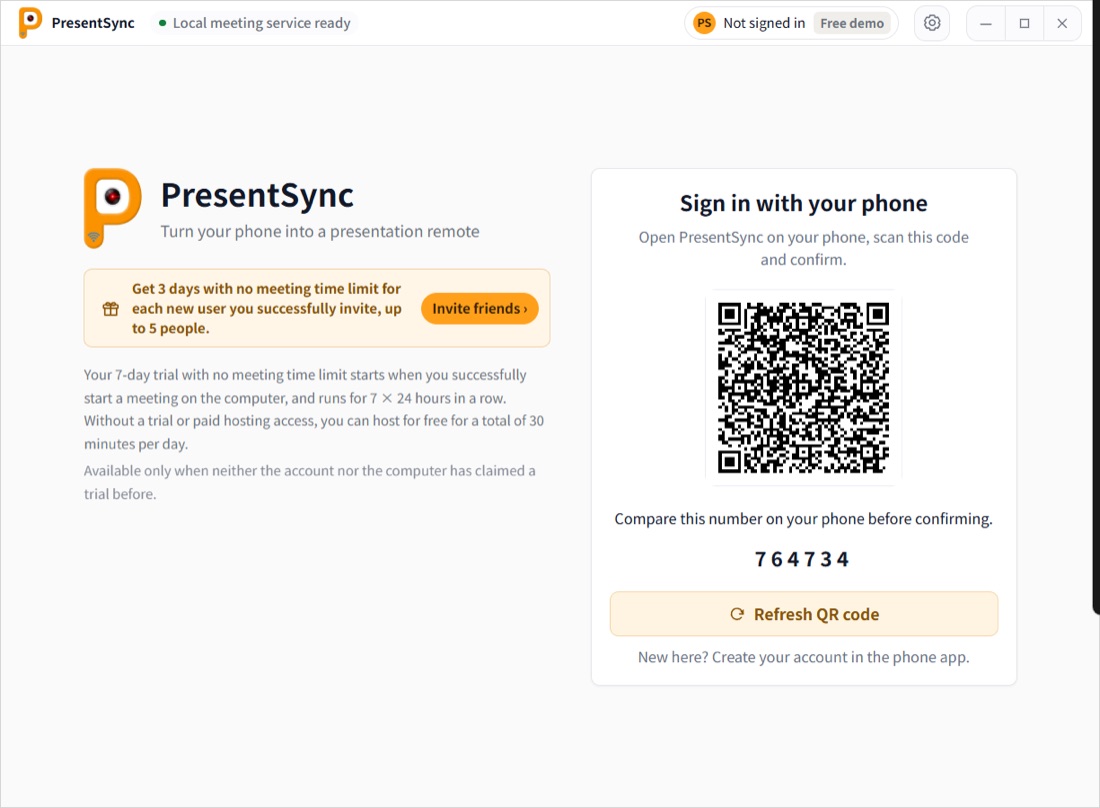
Open PresentSync to see the sign-in QR code
If Windows Firewall asks whether to allow access, choose Allow, or phones cannot connect.
- Phone
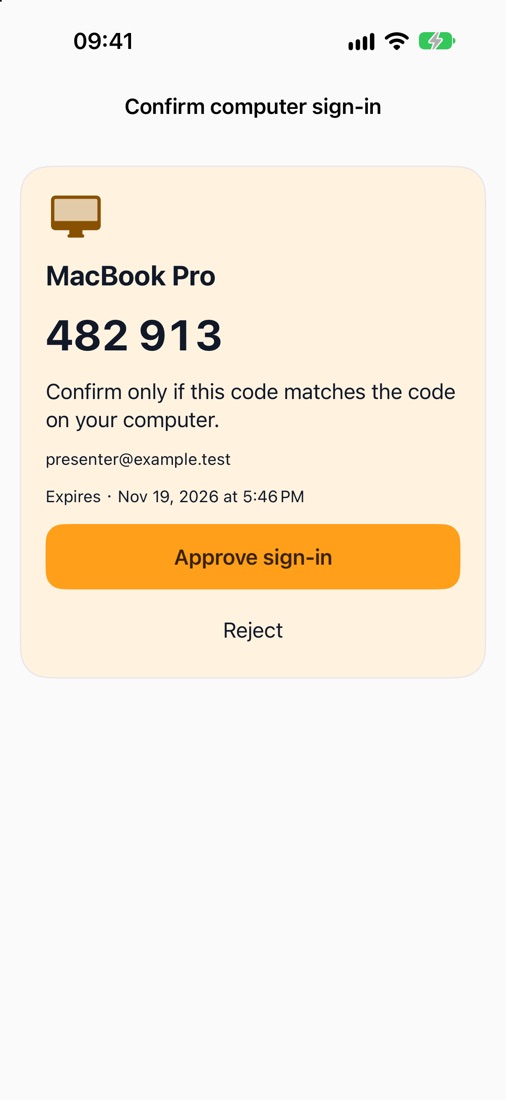
Scan with your phone and approve
In the phone app tap Start Meeting → Sign in on computer, check the code and approve.
- Computer
Click Start meeting
Return to the home screen in the phone app, tap Join Meeting and scan the QR code in the meeting window. If the computer also shows a four-digit code, you can enter it on Android instead.
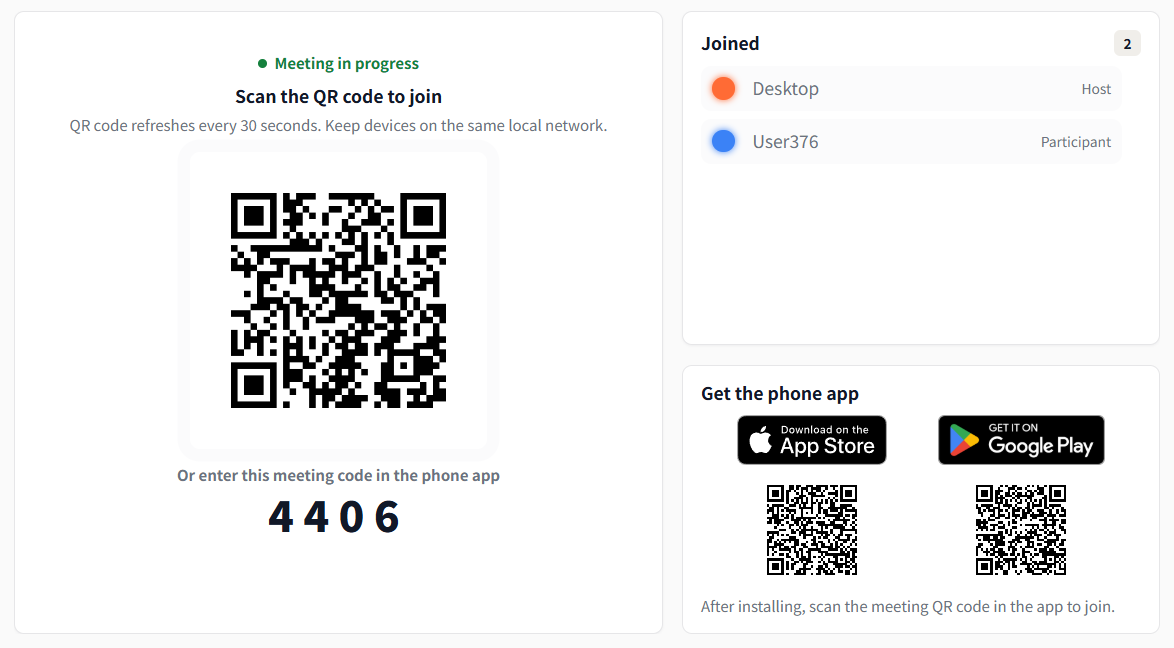
Windows example. To join, scan the large QR code on the left; on Android you can also enter the 4-digit code. The smaller codes on the right download the phone app. - Computer
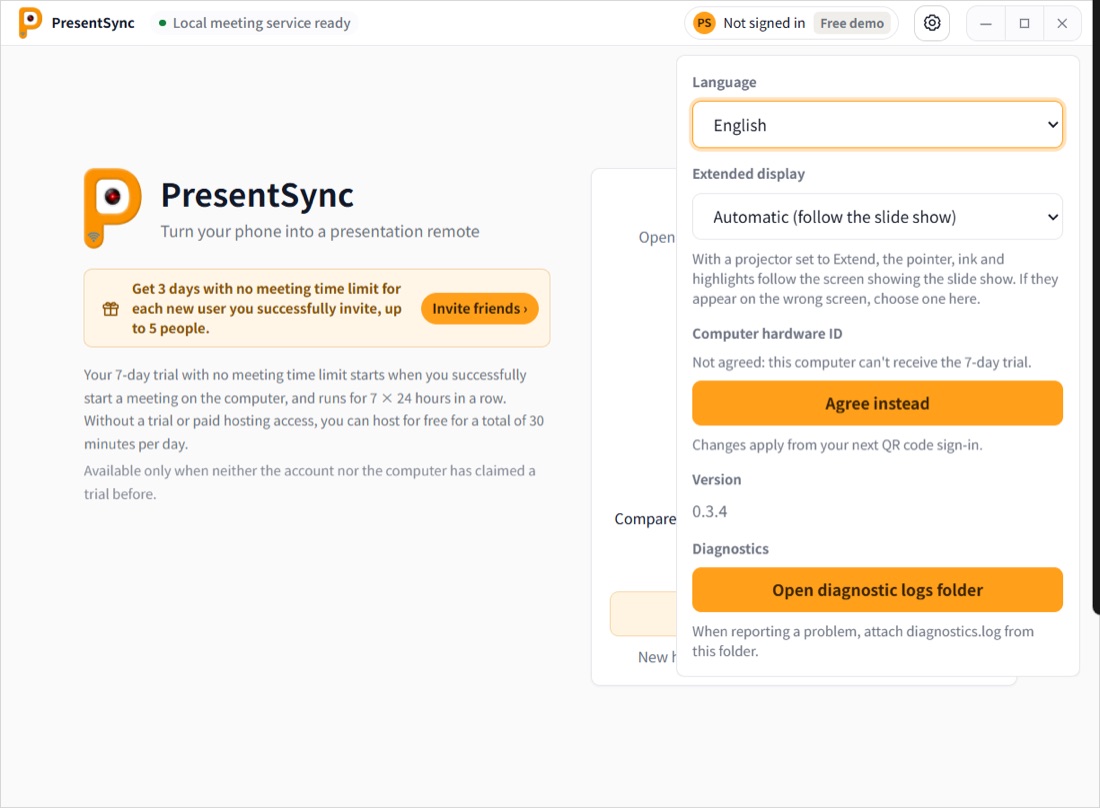
Find the Extended display setting
In PresentSync for Windows 0.3.3 or later, open Settings and select Extended display.
- Computer
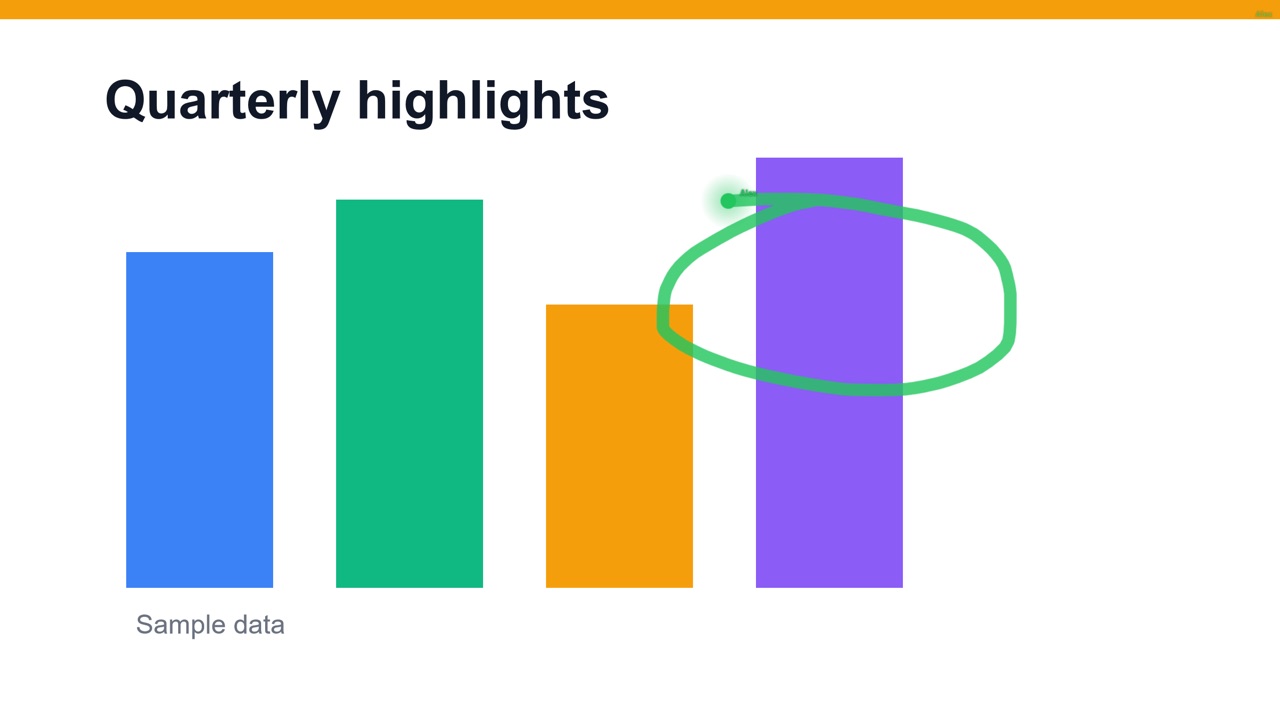
Start the slideshow and swipe on your phone
The pointer and drawing appear on top of your slides. Lines fade after you lift your finger and are never saved to the file.
Common questions
Phone scanned, but it won’t connect?
It is usually the firewall or network isolation. In Windows Security → Firewall & network protection → Allow an app through firewall, tick PresentSync, and make sure the phone and PC share the same Wi-Fi.
Which apps does it work with on Windows?
PowerPoint, WPS Office, Google Slides in a browser, and PDF viewers that advance with the arrow keys.
Which version added the Extended display setting?
In PresentSync for Windows 0.3.3 or later, open Settings and select Extended display.