 PresentSync
Control your slides
from your phone
Your phone becomes your presentation remote: move the cursor, double-tap to highlight, long-press to draw and change slides. For meeting rooms, classrooms and training.
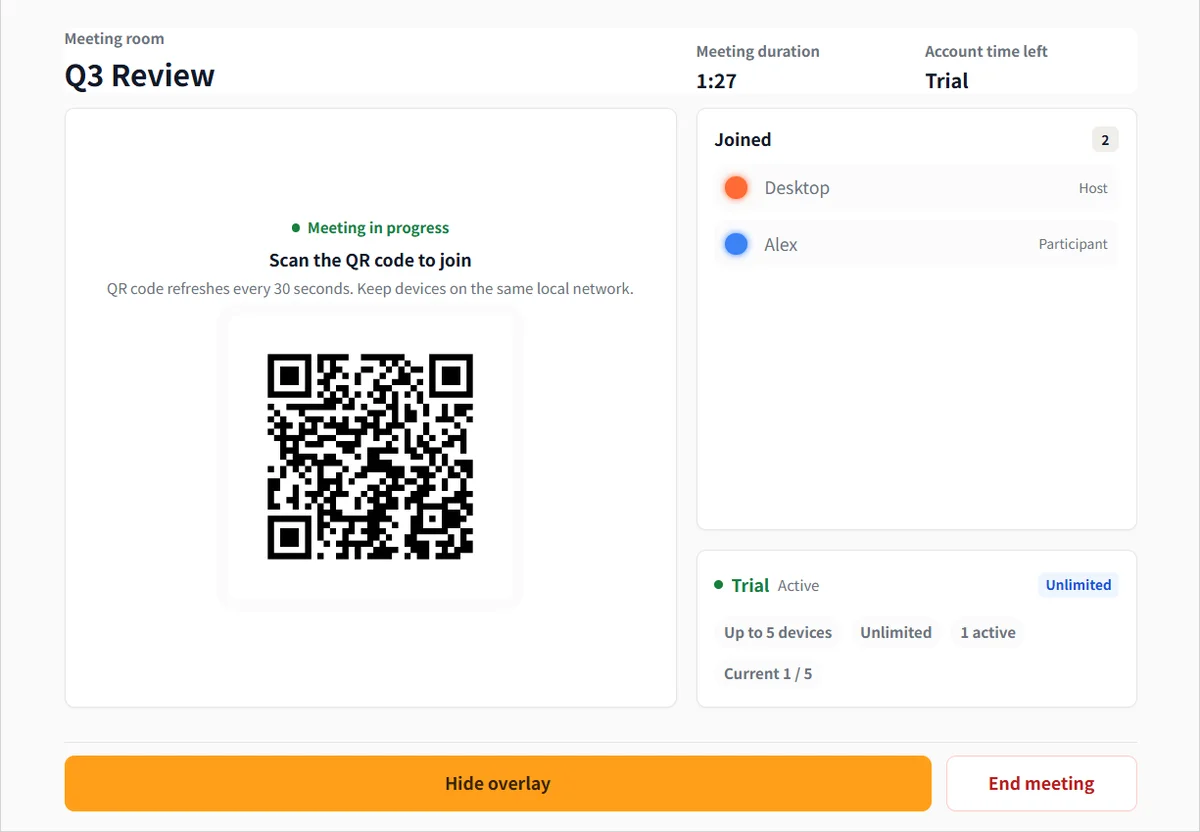
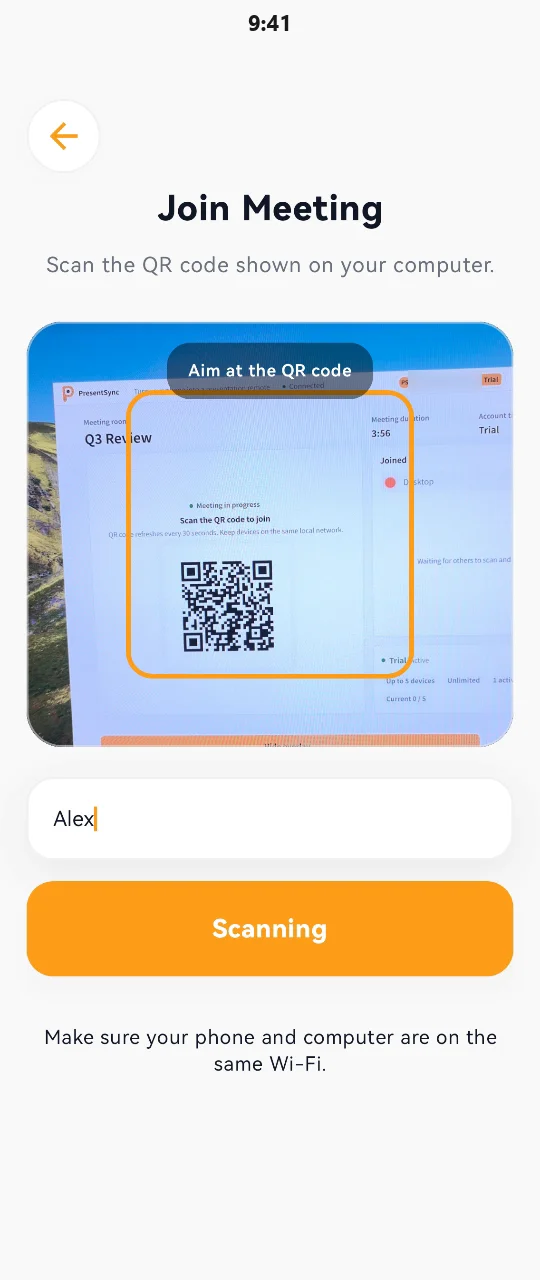
See PresentSync in a meeting
In 16 seconds: scan to join, move the cursor, double-tap to highlight, long-press to draw and change slides from a phone.
In five screenshots
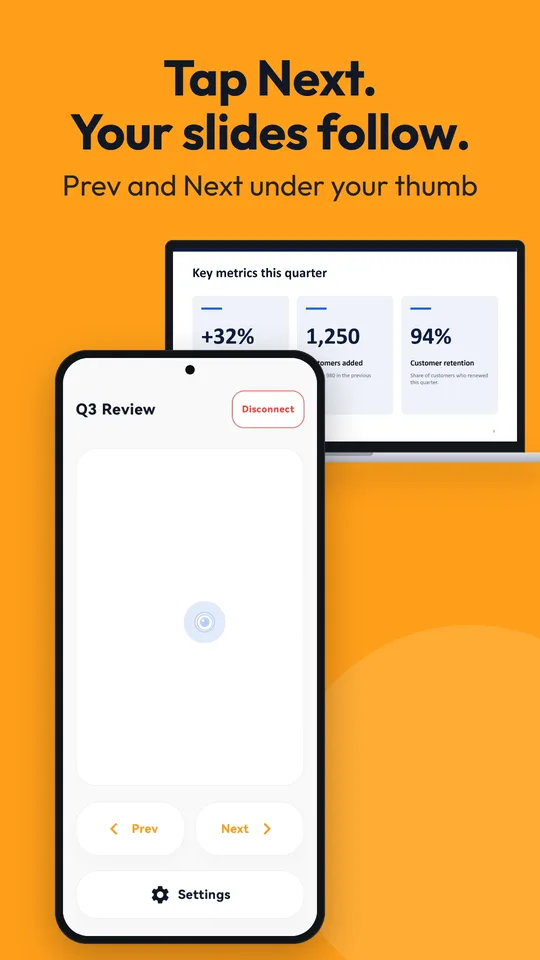
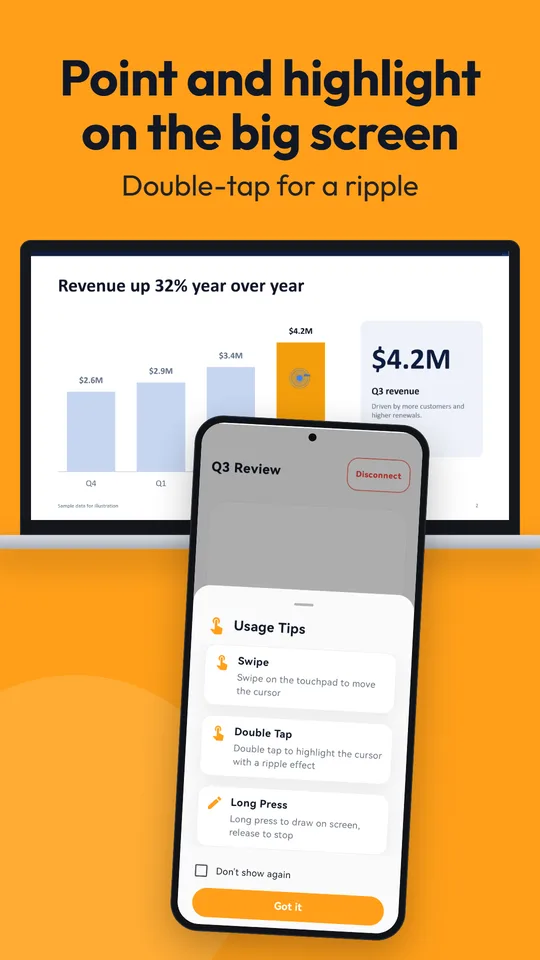
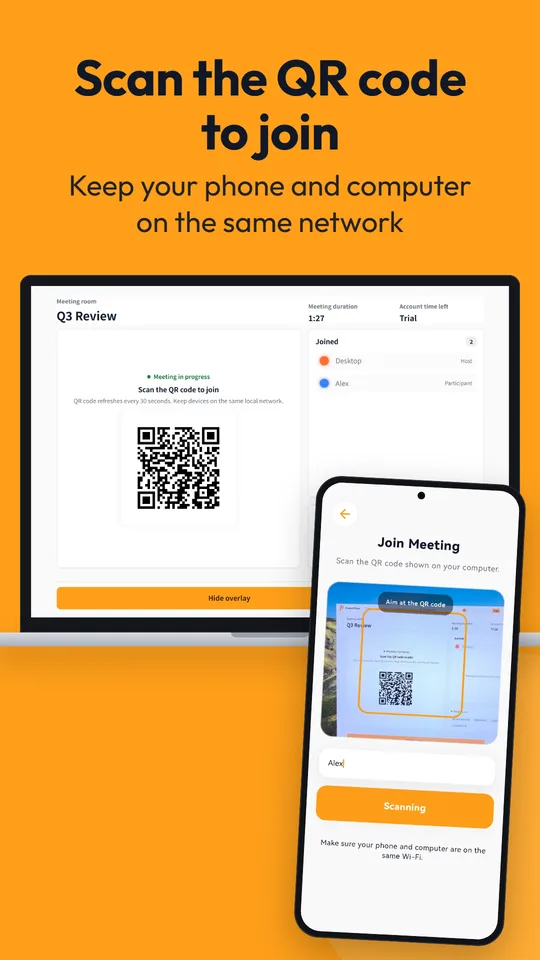
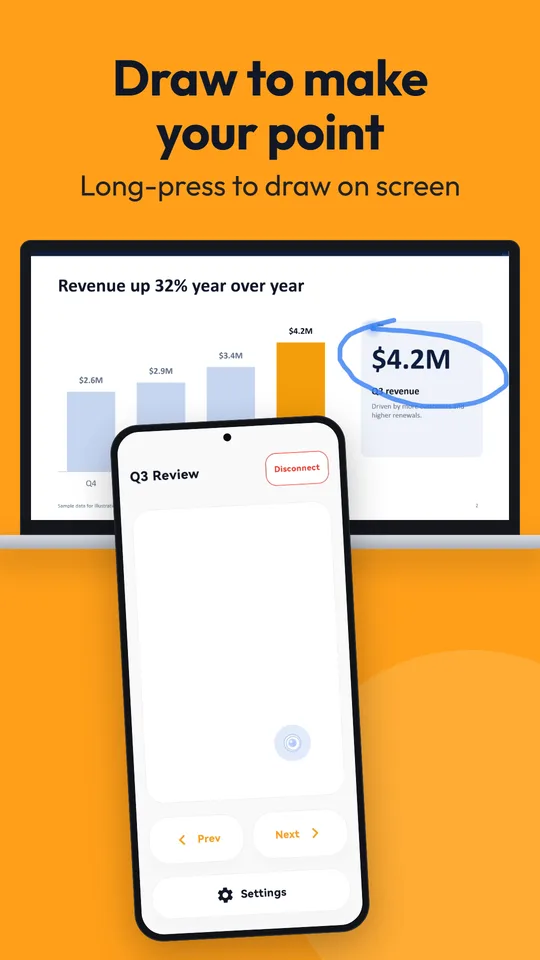
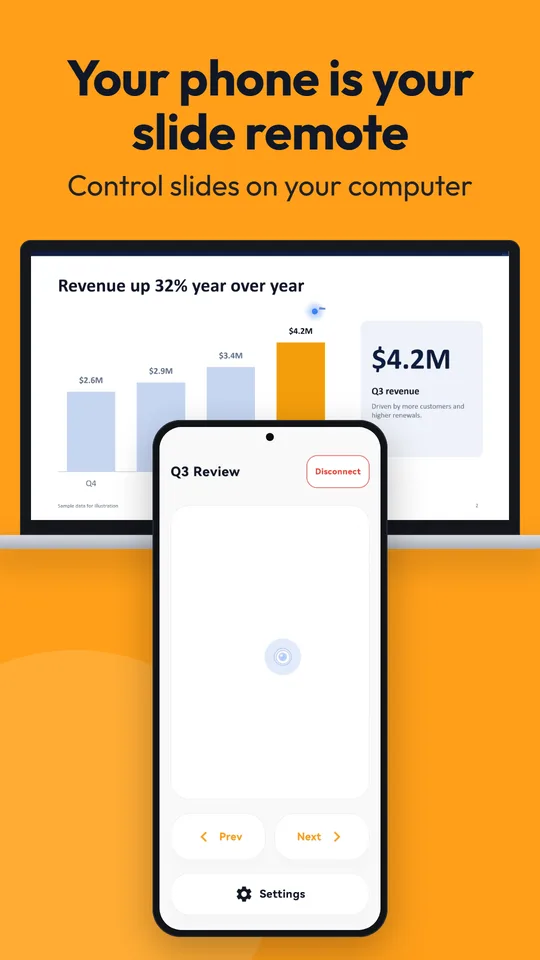
Phone app first, then the desktop app, then the meeting
Install the phone app and sign in
Get PresentSync from the App Store or Google Play, then register or sign in.
Install the desktop app and scan to sign in
Install PresentSync on the Windows PC or Mac you present from, then approve its sign-in by scanning its QR code with your phone.
Start a meeting
Click Start meeting. Participants sign in on their phones and scan the meeting QR code to control the cursor and slides.
A small set of clear tools, focused on what live presentations actually need
Remote cursor
Point to anything on your slides — without walking back to the laptop.
Slide control
Advance and step back through your deck from your phone.
Multi-participant
Participants sign in on their phones and scan to join; each one gets their own cursor color.
Designed for live presentations — not video conferencing
Boardroom updates
Point at key numbers from your seat, no need to walk to the laptop.
Classrooms
Walk among students and point out key details in your slides.
Training
Point to a workflow as you explain it and advance slides from your phone.
Design review
Reviewers use their phones to point out details and focus the discussion.
PresentSync at a glance
- What is PresentSync?
- PresentSync turns your phone into a presentation remote. Use a remote cursor, move slides forward or backward, and let multiple participants join a desktop meeting.
- What do I need to get started?
- Install the PresentSync phone app (Android or iOS) and the desktop app on a Windows computer or a Mac with macOS 13 or later. Register or sign in on the phone, scan to authorize the desktop, then create a meeting. Phones and the host computer need the same network.
- What is included for free?
- Your first hosted meeting starts a 7-day trial; after it ends you keep the free tier (5 devices, 1 meeting, 30 minutes of hosting per day). Personal supports 5 devices and 1 meeting without the daily time limit. Pro supports 10 devices and 2 meetings without the daily time limit.
- Where do I download and subscribe?
- The phone app is on the App Store (iPhone) and Google Play (Android), with the same controls on both. The download page offers the Windows installer and a macOS Universal ZIP (macOS 13 or later). Subscribe in the phone app: on iPhone through the App Store, on Android through Google Play; the desktop uses the same account access.
Common questions about PresentSync
- Can I use my phone as a slide remote or presentation clicker?
- Yes. With PresentSync your phone becomes a slide remote: tap Prev or Next to change slides and swipe to move the cursor on your computer screen. You can also double-tap to highlight a spot and long-press to draw a line that fades after a few seconds.
- How do I control PowerPoint or Google Slides from my phone?
- Install the PresentSync phone app and the PresentSync desktop app on your Windows PC or Mac, approve the desktop sign-in by scanning its QR code, and start a meeting. Then start your slideshow on the computer and tap Next or Prev on your phone to change slides; swipe on the phone to move the cursor on your computer screen.
- Which presentation software does PresentSync work with?
- PresentSync sends the same slide keys as a keyboard, so it works with slideshow software that advances with the keyboard, such as PowerPoint, Google Slides, Keynote on a Mac, WPS Office and PDF presentations. The cursor and lines are drawn on the computer screen; it is not a laser pointer.
- Do I need a Bluetooth or USB presentation clicker?
- No. Your phone connects to your computer over the same local network (the same Wi-Fi or wired network), so there is no USB receiver to plug in and no Bluetooth pairing. Install the desktop app once, then change slides with the phone you already carry.
- What do I need to use PresentSync?
- You need the PresentSync phone app (Android or iOS), the PresentSync desktop app on a Windows computer or a Mac with macOS 13 or later, and a PresentSync account to host. The phone and the host computer must be on the same local network.
- Does PresentSync work on a Mac?
- Yes. The desktop app runs on macOS 13 or later as a Universal ZIP for Apple silicon and Intel, notarized by Apple. A Windows installer (Windows 10 64-bit or later) is also on the download page.
- Does PresentSync work with an iPhone?
- Yes. The PresentSync phone app is on the App Store for iPhone and on Google Play for Android, with the same controls: cursor, double-tap highlight, long-press drawing and Prev/Next slides. You can also subscribe in the iPhone app.
- Can several people point at the same presentation?
- Yes. Each participant signs in on their phone and scans the meeting QR code, and every participant has their own cursor color. Free and Personal allow up to 5 connected devices per meeting, Pro up to 10.
- Is PresentSync free?
- Yes, with limits. Your first hosted meeting starts a 7-day trial; after it ends you keep the free tier (5 devices, 1 meeting, 30 minutes of hosting per day). Personal ($5.99 a month or $49.99 a year) removes the daily time limit, and Pro ($11.99 a month or $99.99 a year) allows 10 devices and 2 meetings. Subscribe in the phone app through the App Store or Google Play; the prices are Google Play USD reference prices, and the store shows the final price.
- Does PresentSync mirror my computer screen to my phone?
- No. The phone works as a remote, not a second screen: swipe to move the cursor on your computer screen and tap the buttons to change slides. The presentation stays on your computer screen, or on the projector or display connected to it.
- Do the phone and computer need the same Wi-Fi?
- Yes. Meeting control requires the phone and the host computer to be on the same local network (same Wi-Fi or same LAN). If they do not connect, check that the computer’s firewall allows PresentSync and try turning off any VPN or proxy on the phone.
Start with your mobile account
Install the phone app and sign in, then install the desktop app and scan to sign in. Your first hosted meeting starts a 7-day trial.