 PresentSync
How to control PowerPoint from an Android phone
Install PresentSync on Android and the presentation computer, approve the computer sign-in, then scan the meeting QR code to control your slides.
You need: PresentSync on your Android phone, the PresentSync desktop app on the presentation computer (Windows 10 or macOS 13 and later), and the same local network.
- Phone
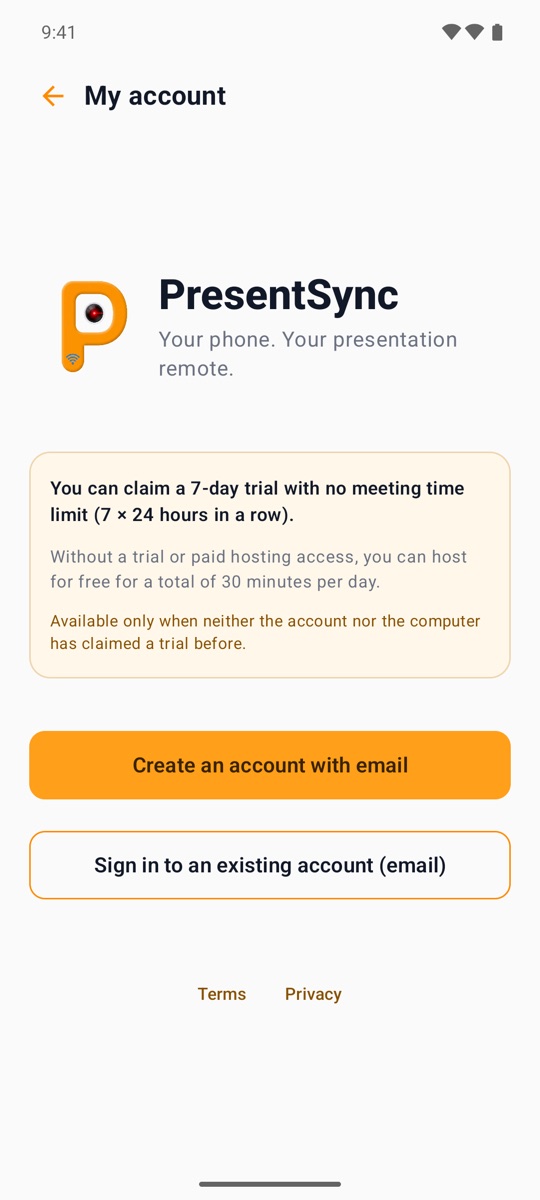
Install the app and sign in
Open PresentSync, tap My Account, then register or sign in with your email.
- Computer
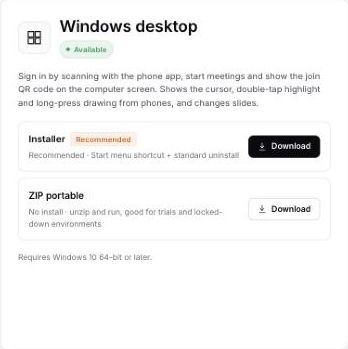
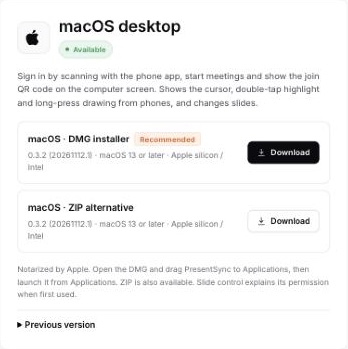
Download the desktop app on the presentation computer
In a browser on that computer, open presentsync.net/download.html. On Windows, click Download next to Installer; on a Mac, click Download next to macOS · DMG installer. Requires Windows 10 (64-bit) or macOS 13 and later.Can’t install software on that PC? On Windows, choose ZIP portable, unzip it and run it.
- Computer
Install and open the desktop app
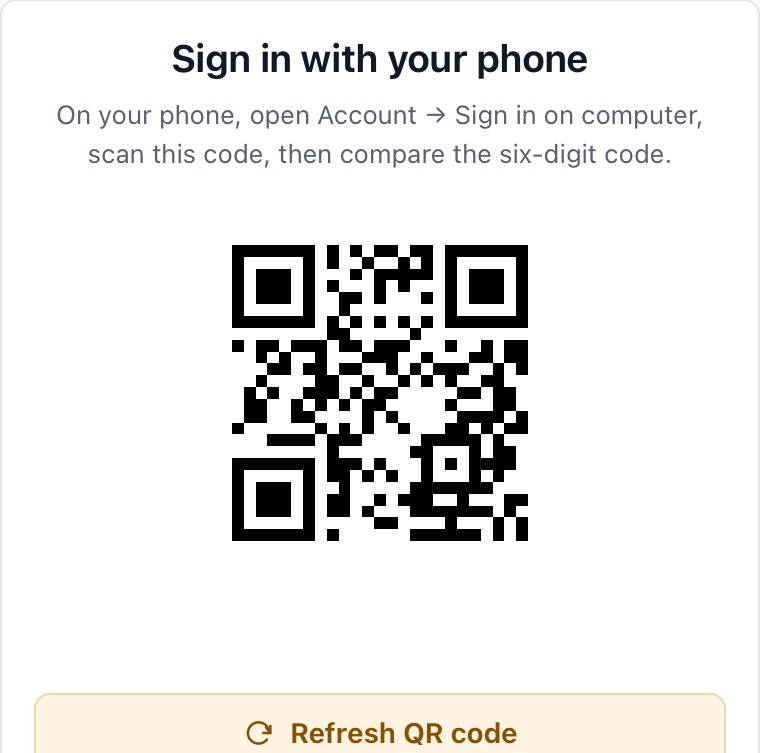
Windows: run the installer and click Next until it finishes; if Windows Firewall asks, click Allow access. Mac: open the DMG, drag PresentSync to Applications and open it from there; if macOS says it was downloaded from the internet, click Open. The app opens with a sign-in QR code.Windows step by step · Mac step by step
- Phone
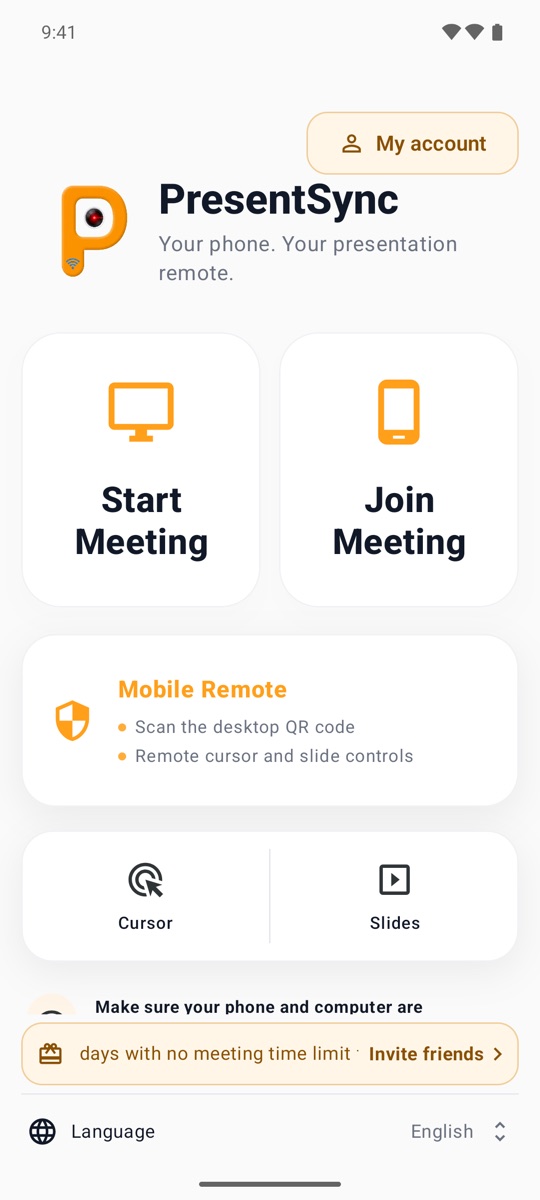
Tap Start Meeting on the home screen
Hosts start from the card on the left.
- Phone
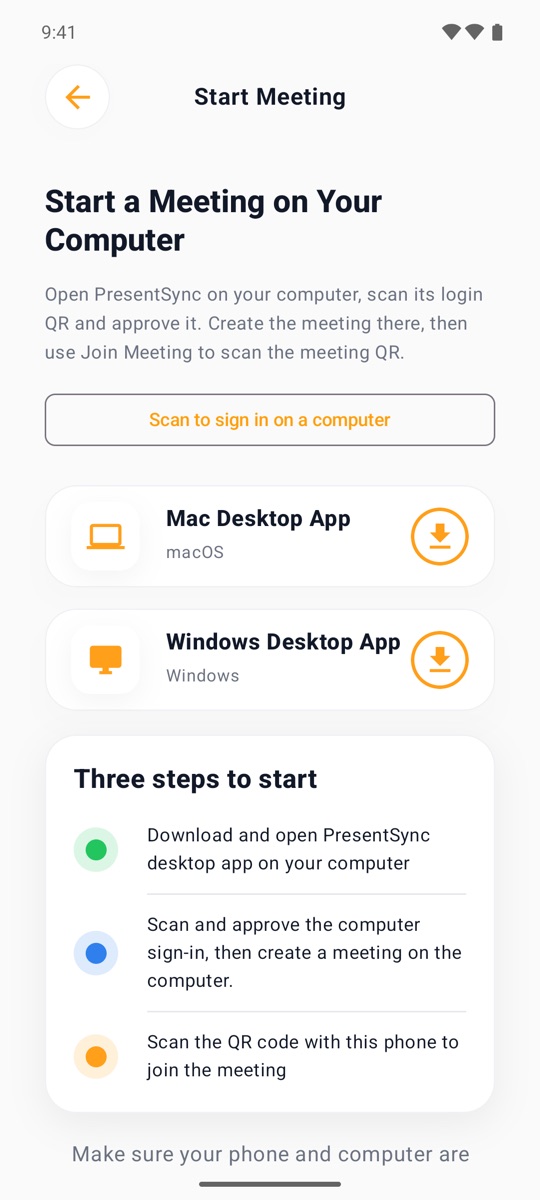
Tap Scan to sign in on a computer
Allow camera access when asked, then aim at the sign-in code on the computer.
- Phone
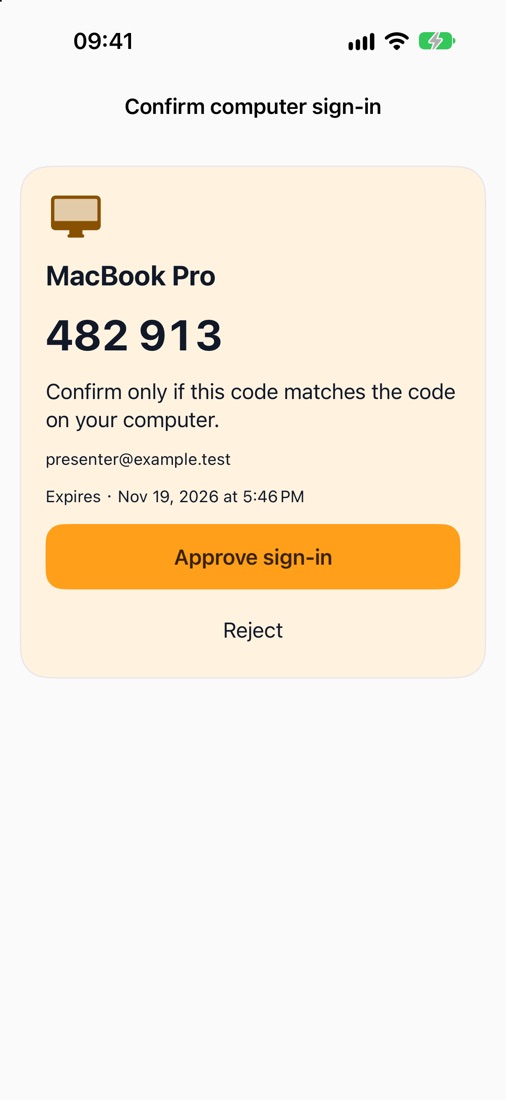
Check the code and tap Approve sign-in
Approve only if both codes match. Shown on iPhone; the Android screen has the same content.
- Computer
Click Start meeting on the computer
The meeting window shows the QR code participants scan to join.
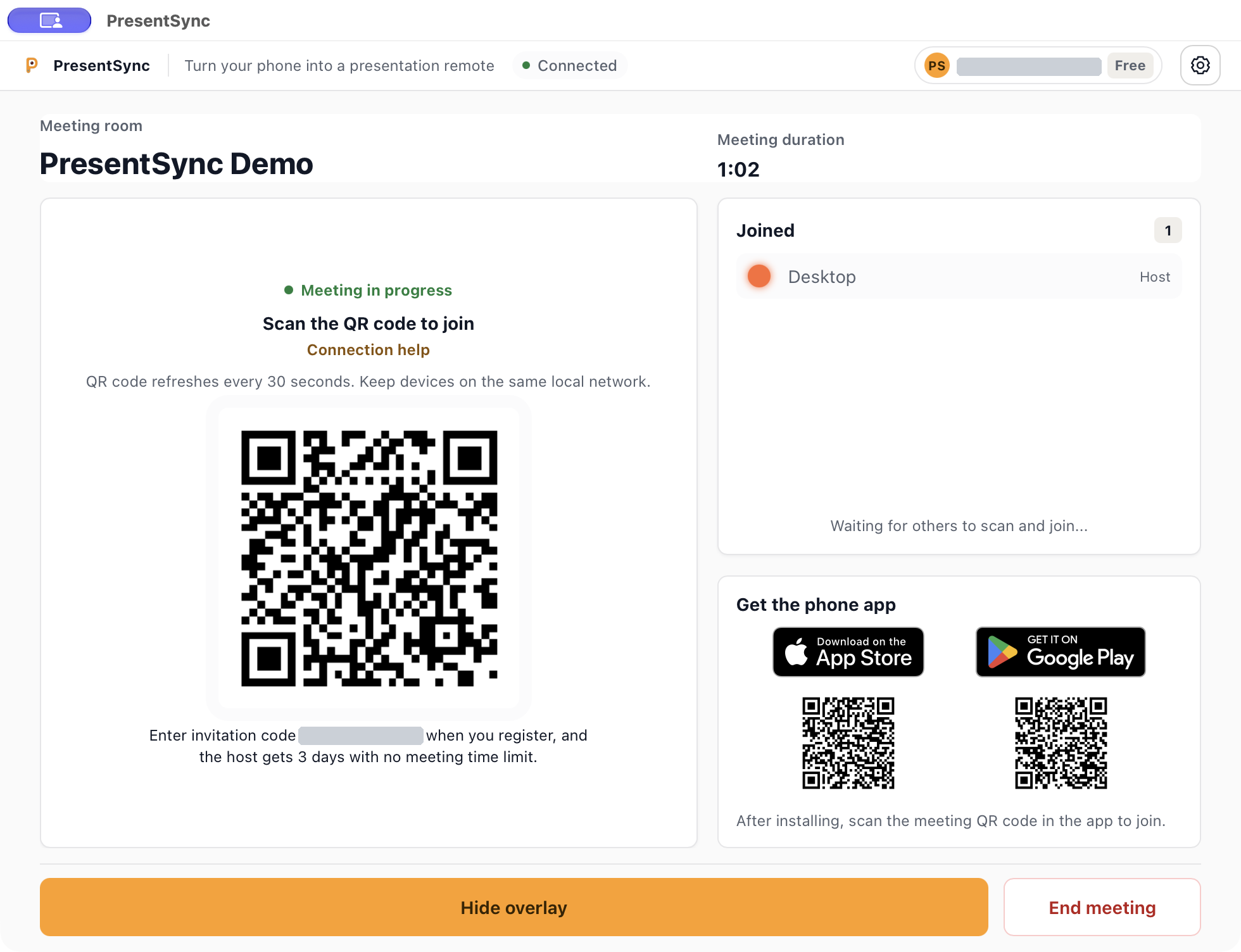
Mac example. To join, scan the large QR code on the left. The smaller codes on the right download the phone app. - Phone
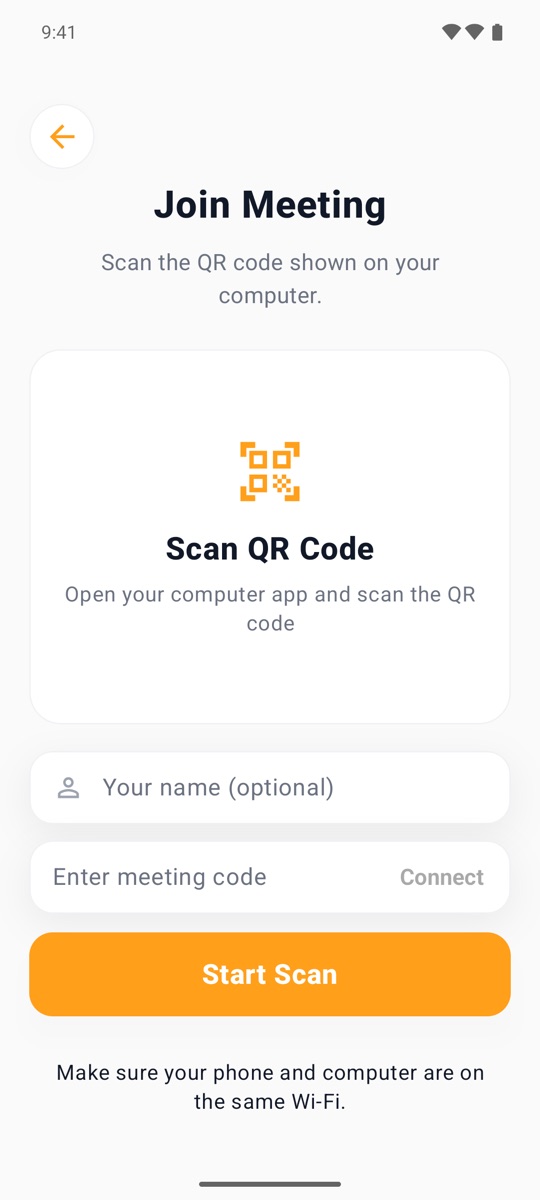
Go home, tap Join Meeting, then scan or type the code
Return to the home screen in the phone app, tap Join Meeting and scan the QR code in the meeting window. If the computer also shows a four-digit code, you can enter it on Android instead.
- Phone
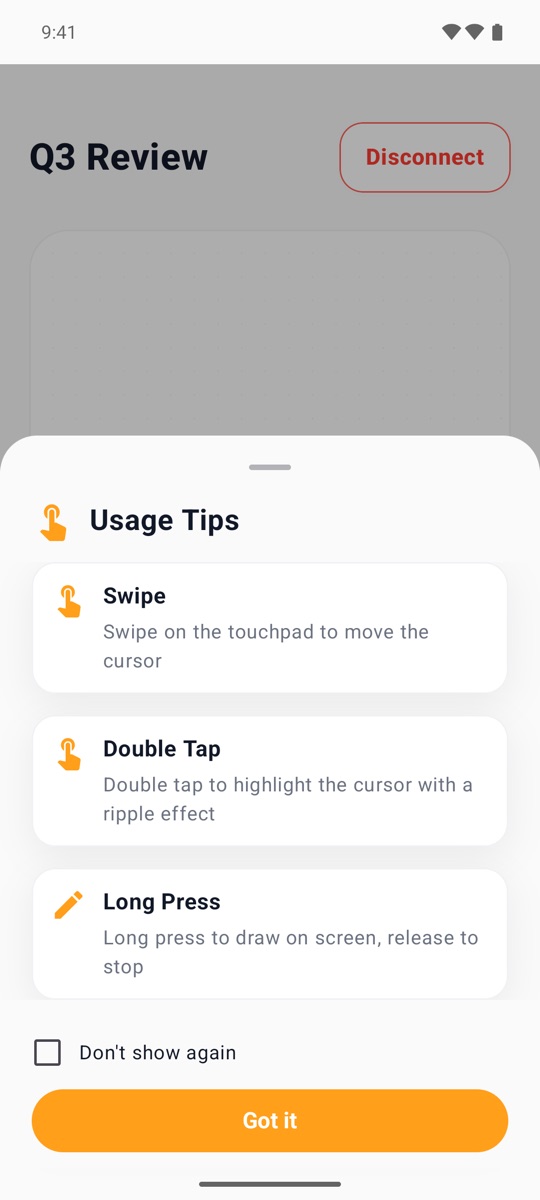
Read the gesture tips
Swipe to move the pointer, double-tap to highlight, long-press to draw.
- Phone
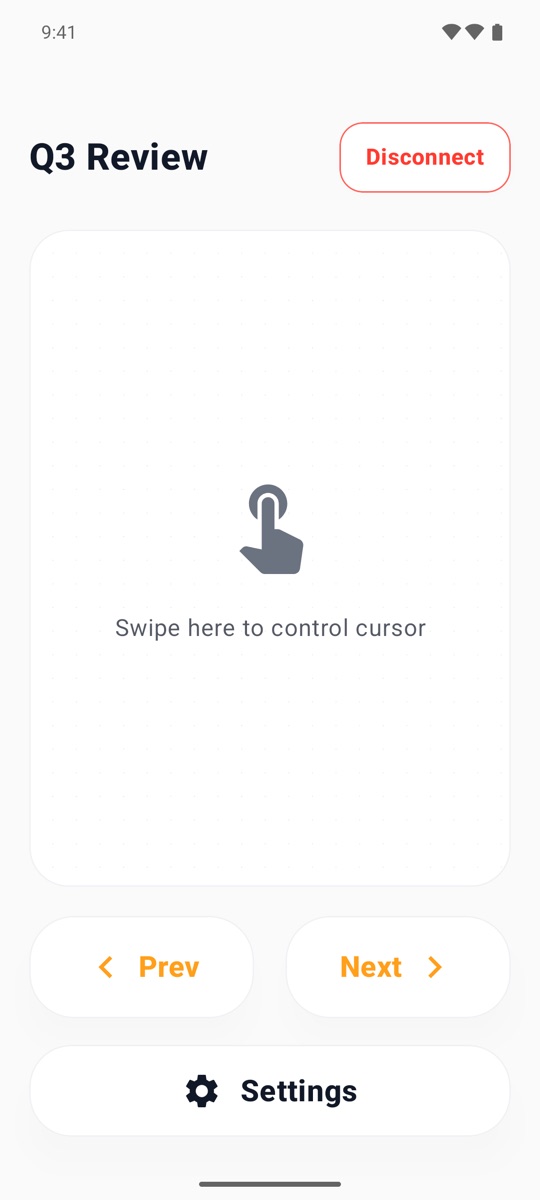
Start the slideshow and tap Next
Keep the slideshow window in front. Swipe the touchpad above to move the pointer.
- Phone
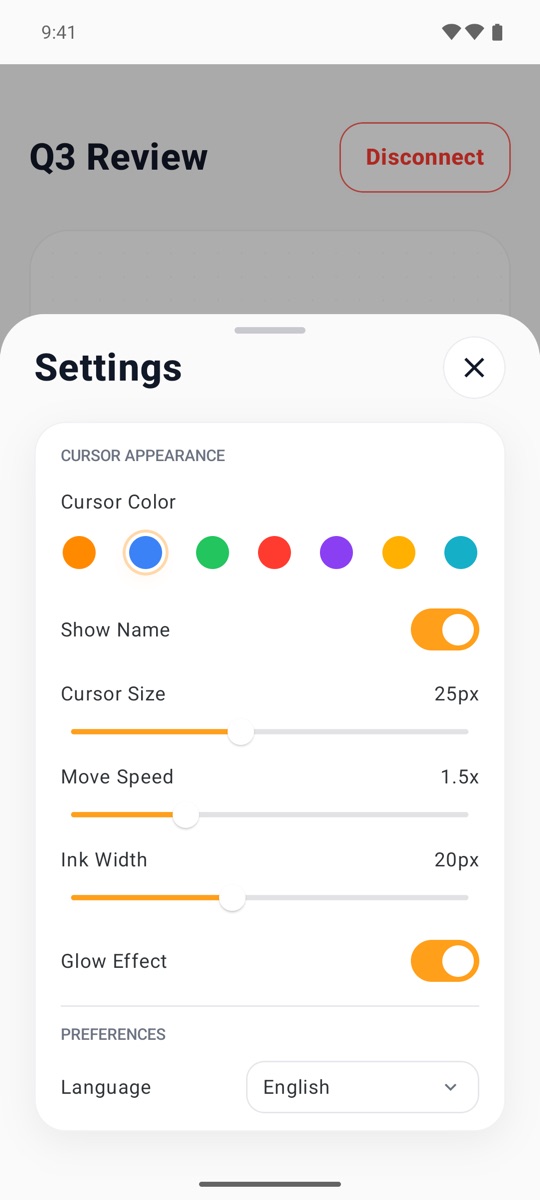
Adjust the pointer if needed
Tap Settings to change the color, pointer size and speed.
- Phone
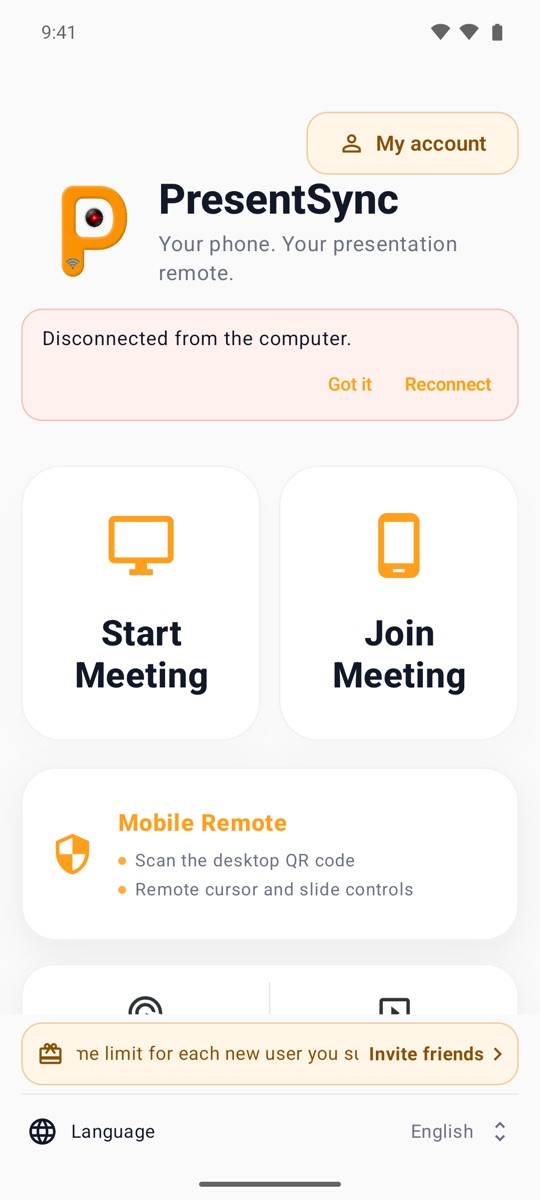
Tap Reconnect if the connection drops
After a drop the app returns to the home screen. Tap Reconnect in the notice to rejoin.
Common questions
Scanned or typed the code, but it won’t connect?
Make sure the phone and computer are on the same Wi-Fi. Some guest networks isolate devices; try a different Wi-Fi network.
What else can it control besides PowerPoint?
WPS Office, Google Slides, PDF presentations and Keynote on a Mac. See each app’s guide