 PresentSync
How to set up PresentSync on Mac
Download the DMG, sign in by scanning with your phone, start a meeting, and allow Accessibility the first time you change a slide.
- Computer
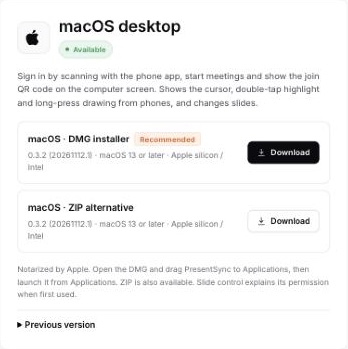
Download the macOS app
On the download page choose the DMG installer. Requires macOS 13 or later.
- Computer
Drag it to Applications and open it
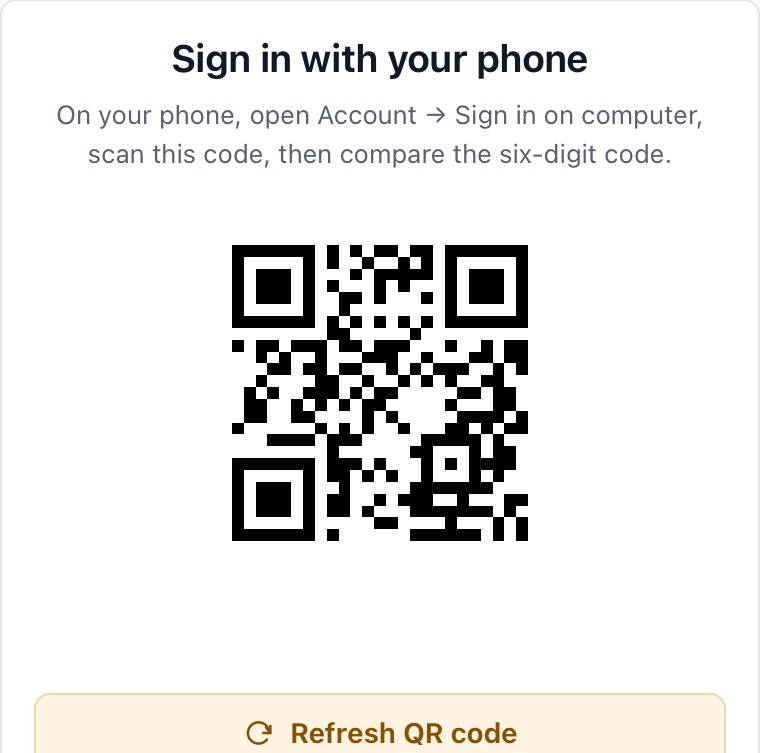
Open the DMG, drag PresentSync to Applications and launch it. A sign-in QR code appears.
- Phone
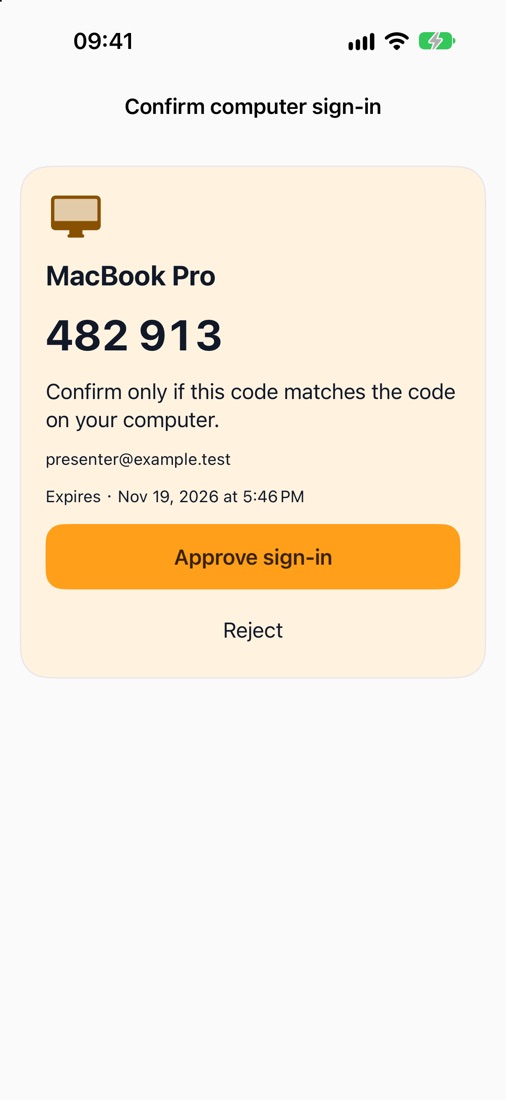
Scan with your phone and approve
In the phone app tap Start Meeting → Sign in on computer, check the code and approve.
- Computer
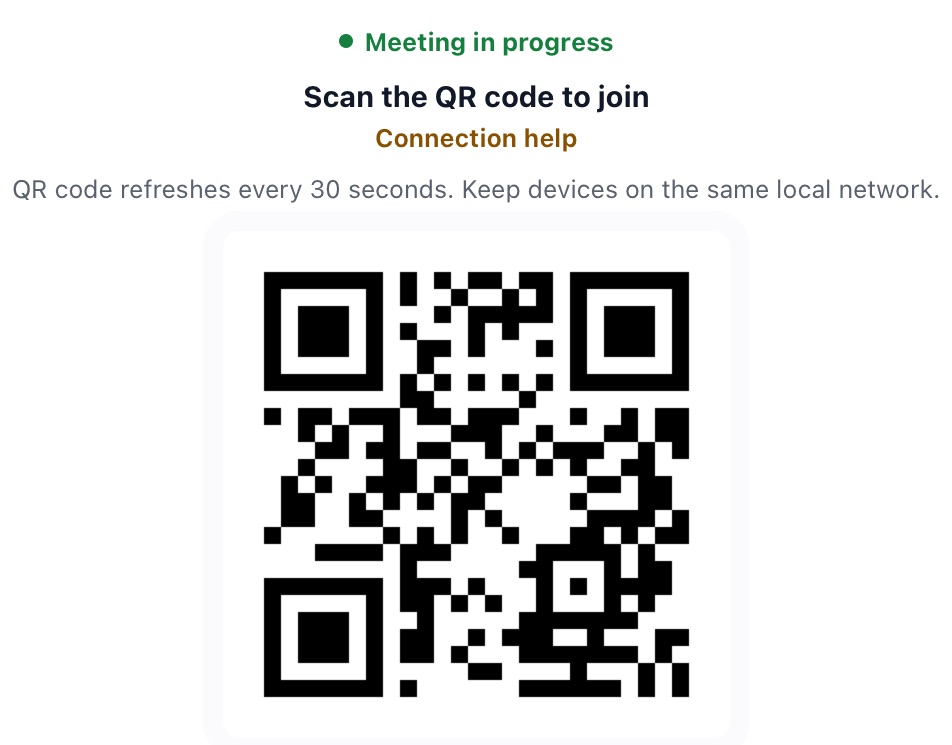
Click Start meeting
Scan this meeting code with Join Meeting on your phone. If macOS asks about incoming connections, choose Allow.
- Computer
Allow Accessibility the first time you change a slide
Click Open System Settings, turn on PresentSync in the list, then tap Next on your phone again.
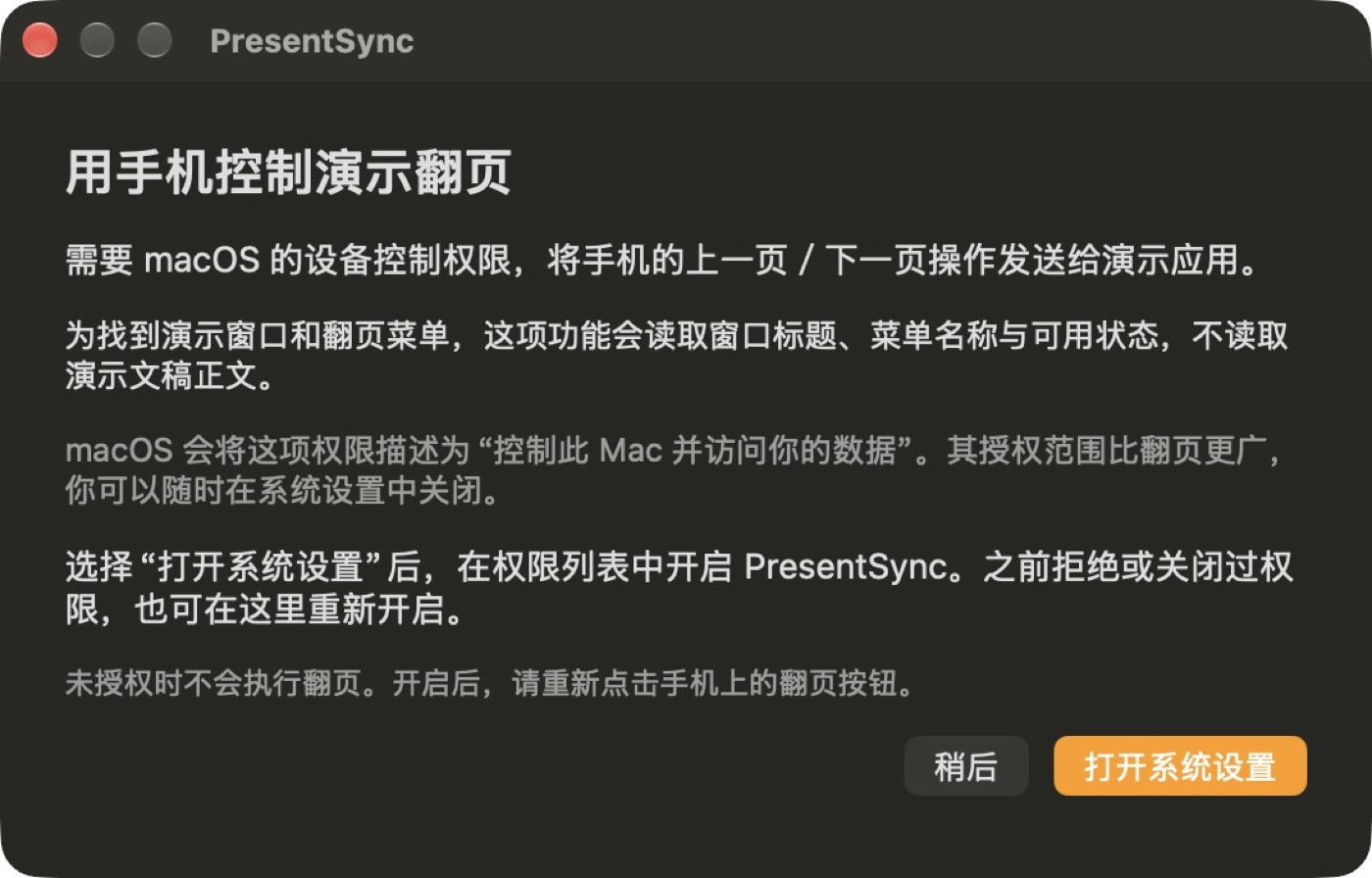
PresentSync’s macOS Accessibility prompt (Simplified Chinese interface).
Common questions
Why does it need Accessibility permission?
macOS requires it before an app can send slide keys to presentation software. PresentSync uses it to find the slideshow window and slide menu; it reads window titles and menu names, not the content of your deck. Without it slides will not change, while the pointer and drawing still work.
Which apps does it work with on a Mac?
Keynote, PowerPoint, WPS Office, Google Slides in a browser, and PDF viewers that advance with the arrow keys.